Bug Hunting on the Highway — How to Fuzz a Car's Infotainment System
Bug Hunting on the Highway — How to Fuzz a Car's Infotainment System
DIY Car Hacking: We Built a USB Fuzzer to Find Real-World Bugs
Ever wondered what happens if your car's radio tries to play a corrupted song file? Most of the time the radio skips a track and life goes on. Every so often, though, the whole infotainment screen freezes or reboots. Cars today are just complex computers on wheels, and like any computer, their software has bugs. Inspired by research presented at DEFCON 31, we build our own simple fuzzer with a Raspberry Pi to hunt for these bugs automatically. This is the story of how it works and how you can build one yourself.
Part 1: The "Why" — What's Fuzzing and Why the Radio?
Black-Box Fuzzing Concept
- Please not that we're treating the car's Infotainment (IVI) system like a mystery box. We don't have the source code, but we do know what kind of input it expects — music and video files from a USB stick.
- Fuzzing is all about feeding a system unexpected, messed-up input and seeing how it reacts. We're going to feed it messed-up or "fuzzy" data (think: corrupted MP3s) just to see if we can make it hiccup or, even better, crash.
- Why the media player? It's the perfect target. It contains complex code (called parsers) designed to understand dozens of file formats (MP3, WAV, AAC, etc.).
- One flipped bit in a file's header could be all it takes to freeze the system or cause a crash. That's our way in.
The Goal: Finding Reproducible Bugs
We’re not trying to brick the system, The goal is to find reproducible software flaws. By finding a specific corrupted file that always causes a crash, we can report it to the manufacturer so they can build a patch, making the system more robust and secure for everyone.
Part 2: The "How" — Inside the Fuzzer's Brain
The Python Script at the Heart
- The whole operation is run by a Python script that automates the attack. We built it to run for hours (or even days) on end, just systematic testing thousands of test cases.
- Mutation: The script starts with a “seed” file — say, a clean test.mp3 — and scrambles parts of it using a tool called Radamsa. It also gives the virtual USB drive a random name each round.
- Setup: The Pi mounts a virtual disk image, wipes old files, copies in the new mutated files, and writes the new volume label into the boot sector.
- Presentation: This is the magic trick. The script uses the Linux Gadget Module (g_mass_storage). This kernel feature allows our device (the Raspberry Pi) to pretend to be a simple USB mass storage device. When we plug it into the car, the car has no idea it's a full-fledged computer; it just sees a regular USB stick.
- Monitoring: Once the fake USB is connected, the fuzzer starts watching for signs of a crash.
-
The Baseline Kernel Message Monitoring (dmesg): The fuzzer constantly checks kernel messages. If the car's entire infotainment system reboots, the USB device will momentarily disconnect and reconnect. The fuzzer sees this new connection and flags it as a high-severity crash. This method works on any system and does not require an ADB connection.
-
Application Process Monitoring (adb): If your infotainment system is based on Android and you have USB Debugging enabled, you can use this more granular method. Many infotainment systems are based on Android. We connect via the Android Debug Bridge (ADB) and ask for the Process ID (PID) of key media services (like com.example.mediaplayer). The fuzzer then checks every few seconds: "Is that process still alive?" If a process disappears or its PID changes, we know we've triggered a crash at the application level, even if the whole system didn't reboot. This is an optional but powerful enhancement.
-
-
Logging & Looping: If a crash is detected, the fuzzer immediately saves a complete snapshot of the failure. It copies all the mutated files and the exact volume label into a crashing
_files_round_XXXfolder, along with a text file explaining why it was flagged (e.g., "dmesg reboot detected" or "PID for example.mediaplayer was killed"). The fuzzer then logs the crash and automatically continues to the next round.
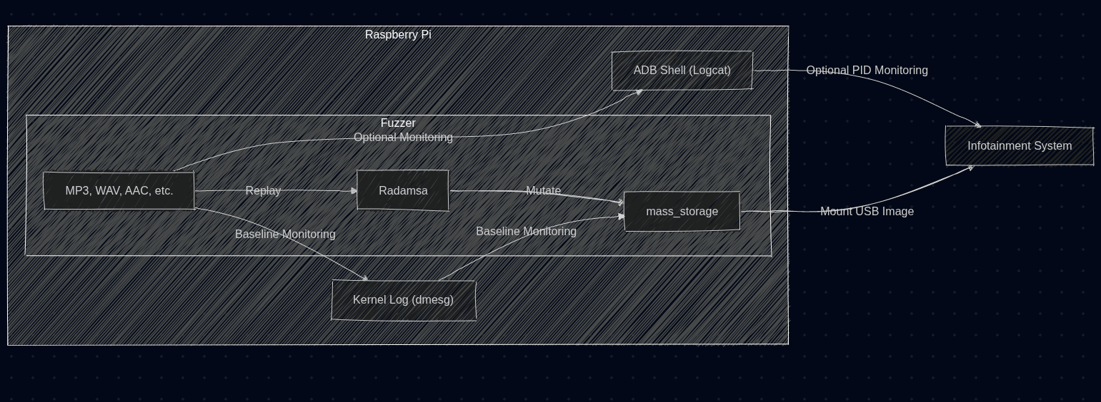
Part 3: How To Built the Fuzzing Lab
The Hardware You'll Need
-
The Fuzzer Host: A Raspberry Pi 4. This is the perfect device because It's cheap, runs Linux, and—most importantly—has a USB-C port that supports USB On-The-Go (OTG), which is absolutely essential for the Gadget Mode to work.
-
The Target: Your car's infotainment system (as long as it has a USB-A port for music).
-
Cables: You'll need a USB-C to USB-A cable to connect the Pi's OTG port to the car's USB port. It's better to have a separate power supply for the Pi.
-
ADB Connection (Optional): A USB-to-Ethernet adapter or another USB cable if your car has a second port, which you'll use for the ADB connection.
The Software Environment
-
Install Raspberry Pi OS: Start with a fresh, updated install of Raspberry Pi OS.
-
Install Dependencies:
sudo apt-get install dosfstools android-sdk-platform-tools(For formatting the disk image and using ADB).- Radamsa: Clone the Radamsa repository from GitHub and compile it using make.
$ git clone https://gitlab.com/akihe/radamsa.git
$ cd radamsa
$ make
$ sudo make install # optional, you can also just grab bin/radamsa
$ radamsa --help -
Create the USB Disk Image:
-
Use the dd command to create a blank file that will act as our virtual USB stick (e.g.,
dd if=/dev/zero of=pi_usb.img bs=1M count=512 for a 512MBdrive). -
Format this image as FAT32:
mkfs.vfat pi_usb.img.
-
-
Prepare Seed Files: Create a
seed_filesdirectory and fill it with a few small, simple, and valid .mp3 or .wav files. These are the starting point for Radamsa's mutations. -
Enable Gadget Mode: This involves loading the libcomposite kernel module and configuring the
g_mass_storageservice to point to yourpi_usb.imgfile. -
Enable ADB on the Car: This is the trickiest part. You will need to find the hidden "Developer Options" menu in your car's settings (it often involves tapping the "Build Number" seven times, just like on an Android phone) and enable "USB Debugging".
Putting it all Together
With the hardware connected and software installed, you can launch the Python fuzzer. It will take over, creating a relentless cycle of mutating, presenting, and monitoring, working 24/7 to find bugs for you.


.jpg?width=327&height=160&name=Cover_022%20(10).jpg)